No. “Wireless” does not tell you whether a mouse uses Bluetooth, needs a USB receiver, or supports both. Before adding one to an employee gift kit, approve the connection route on the actual computer—and confirm what is in the exact box you are buying.
For a university department welcoming visiting lecturers, a mouse can look like an easy, size-free gift. But a USB receiver is not useful on its own if the recipient has no matching port, and Bluetooth is not an option if the institution does not allow that device to pair. Ask IT about the intended computers before asking the decorator about logo placement. Required work equipment should be issued through the equipment process, not deducted from a recognition allowance.
Three checks hidden inside the word “wireless”
Connection method: read the setup instructions, not just the product name. For example, Logitech’s M185 quick-start guide directs the user to plug a USB nano-receiver into the computer and shows a receiver storage compartment. That is a receiver-based setup; it is not an instruction to search for the mouse in Bluetooth settings.
Compatible is not included: the Pebble Mouse 2 M350s setup guide describes Bluetooth Low Energy pairing and compatibility with a Logi Bolt receiver. It says the receiver is included only in the Pebble 2 Combo Multi-OS. Buying the mouse alone is therefore not the same package as buying that combo.
Bundle identity: Logitech’s separate Pebble 2 Combo instructions describe plugging in the included receiver or pairing over Bluetooth. Use the exact regional bundle and part number on the supplier’s quote to confirm contents. A photograph of a receiver storage slot is not evidence that a receiver comes in the box.
These are manufacturer-documentation examples, not a tested shortlist or a claim that Brand Sauce stocks either product. Models, destination-country supply, decoration permission and delivered prices remain quote-needed.
Choose the route before choosing the finish
- Bluetooth is supported and approved: consider a Bluetooth-capable mouse, then try pairing on a representative managed computer using an ordinary recipient account. Check the manufacturer’s operating-system requirements.
- A USB receiver is the approved route: specify the compatible receiver and whether it is supplied, pre-paired or needs a pairing step. Confirm its physical connector against the computer or approved dock. If an adapter is necessary, include and test that exact adapter rather than leaving the recipient to buy one.
- Recipients use mixed computers: offer separately approved configurations or a dual-mode model whose two routes have both been checked. Do not assume a dual-mode mouse includes every accessory needed for both routes.
- The device or policy is unknown: hold the mouse selection for an IT check, or offer a non-electronic alternative. An “I’m not sure” option is more useful than a guess at checkout.
Keep basic pointing separate from extra features. Establish whether the promised buttons or shortcuts require an application and whether IT permits it. Our guide to gift setup, apps and account requirements helps distinguish a ready-to-use item from an accessory that introduces another setup task.
A connection card to attach to the purchase request
Complete this card for each approved computer group. It is a purchasing aid, not a certification or a test Brand Sauce has performed.
- Host: computer model, operating system, available port or approved dock, and IT owner.
- Mouse: exact model, regional part number and intended connection mode.
- Box contents: receiver model and connector, battery or charging accessories, and any separate adapter. Mark each as included, separately ordered or unnecessary.
- Setup: pairing steps, required permissions and any software needed for the features you plan to advertise.
- Acceptance: ordinary-user setup, pointer movement, scrolling, required buttons, sleep/wake reconnection and the normal dock/undock routine checked on a sample.
- Support: receiver storage location, replacement route and who helps if pairing fails. Record the sample approver and date before releasing the order.
Do not promise that a spare receiver from another mouse will work. Require a manufacturer-confirmed match to the exact model and an approved pairing procedure. If the gift also includes a desk mat, connection approval does not prove surface tracking; use the separate mouse-pad compatibility checklist for that question.
Worked buying example: one gift, two computer groups
Illustrative scenario—not customer evidence: a department wants 30 welcome gifts. Eighteen recipients use managed laptops on which IT has approved Bluetooth pairing. Twelve use workstations for which IT requires a receiver-based route.
The buyer could approve one dual-mode mouse, then order 30 mice plus 12 compatible receivers if the selected standalone package excludes them. That quantity is valid only after confirming the receivers, port fit and pairing process. If the chosen package already includes a receiver, do not buy another 12 automatically. Compare the complete delivered configurations, not the mouse-only prices.
Pack the receiver-dependent group separately and label the setup route in the insert. Keep one support note for each configuration. A last-minute substitution must preserve the approved connection, package contents and setup—not merely the color and general shape.
Bottom line: the purchase specification is “mouse + approved connection + required accessories + workable setup.” “Wireless mouse” is only the beginning.
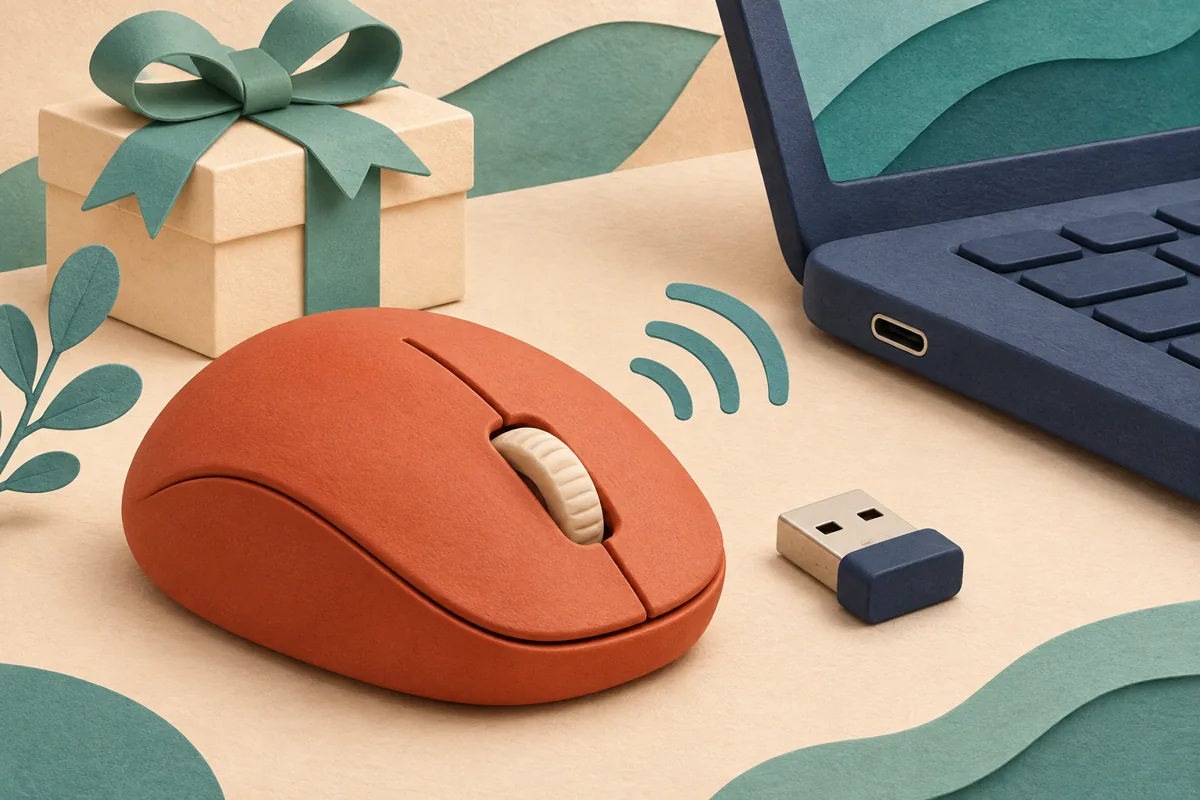
Editorial image: AI-generated illustration, not a product photograph or evidence of a compatibility test.