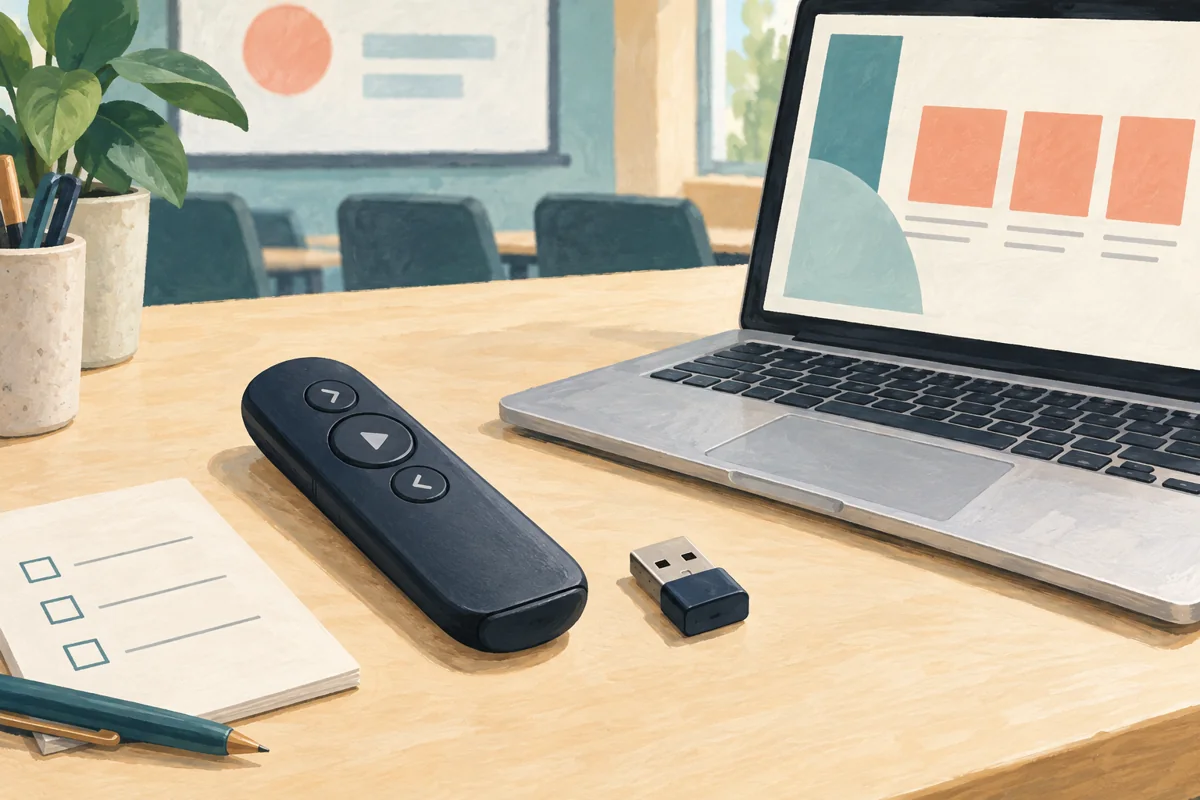
A wireless presentation remote is not automatically ready for every training-room laptop. Before buying clickers as trainer gifts or including them in a facilitator kit, confirm three things separately: how the remote connects, which slide controls work, and whether extra pointer features require approved software.
The important purchasing distinction is not simply Bluetooth versus USB. It is the functions your presenters need on the computers they are actually allowed to use. A remote that advances slides on a personal laptop may still be an unsuitable choice for a shared, locked-down classroom computer.
Start with the computer that runs the slides
Connect the remote to the device running the presentation, not merely to the display showing it. Ask the training coordinator whether presenters bring their own laptops or use a room computer. Then have IT confirm the permitted connection route.
For a concrete manufacturer example, Logitech’s Spotlight connection instructions describe two separate methods: plugging its receiver into the computer or placing the remote into Bluetooth pairing mode. That establishes two options for that model; it does not mean every wireless clicker supports both, or that an unrelated receiver will work.
- Receiver route: identify the receiver’s connector, the available laptop port and any adapter or dock in between. Ask IT whether that peripheral is permitted. Include the actual adapter in the sample check, rather than approving the remote alone.
- Bluetooth route: confirm Bluetooth is available and pairing is permitted for the presenter’s account. Rehearse pairing on the intended machine before ordering. A radio specification is not proof of permission to connect.
- Shared-room route: decide who stores the receiver and who resets or re-pairs the kit between users. A personally assigned remote and a room-owned remote need different handoff instructions.
Separate slide navigation from enhanced pointing
Logitech’s current Spotlight product page lists USB-receiver and Bluetooth connectivity and describes Logi Options+ for configuring highlighting, button functions and other controls. Its older connection article refers to Logitech Presentation software. For a purchase today, have IT check the current download and compatibility requirements for the exact model instead of copying an old setup card into every gift box.
Write down which features are essential. “Next and previous slide” is a different requirement from “highlight a region for people watching remotely.” Do not approve enhanced functions solely because basic navigation works. If installation or permissions are required and the organization will not allow them, either remove that feature from the brief or choose a different device.
For hybrid training, include a remote attendee in the trial and ask what they can actually see. The relevant outcome is the shared presentation view, not just what appears on the trainer’s own screen. This is a proposed acceptance check, not a claim that Brand Sauce has tested a particular remote.
A short acceptance rehearsal before the bulk order
Run this sequence using the normal presenter account, actual slide application and intended display or meeting setup. Save the result with the purchasing brief.
- Connect from a clean start. Follow the included instructions without an administrator standing in for the presenter. Record any setup intervention that would be needed again.
- Open a representative deck. Start the slide show and try next, previous and every other required control. Test the real application, not just the manufacturer’s demonstration.
- Check the audience view. Confirm the projected screen and, where relevant, the remote participant’s view show the required pointing effects.
- Move to normal teaching positions. Try the controls from where the facilitator will stand. Do not substitute an advertised maximum range for this room check.
- Reconnect and hand off. Disconnect, reconnect and let a second facilitator follow the instructions. Confirm where the receiver, cable or batteries belong when packed.
Copyable approval record: remote model/SKU; computer and operating-system version; presenter account restrictions; slide app/version; connection route and adapter; required controls; software/permissions approved by; audience-view result; room check result; included accessories; test date; reviewer; pass or unresolved issue.
What a failed rehearsal changes
Illustrative example: a university’s training team wants a clicker with a highlighting effect for hybrid workshops. The sample advances slides on the classroom computer, but the effect cannot be configured under its approved software policy. Mark navigation as passed and highlighting as unresolved. If highlighting is essential, pause that model’s approval; if it is optional, revise the brief explicitly. Do not describe the whole device as “fully compatible” after only the first test.
For trainers who would rather receive another useful item, an employee gift preference survey can establish demand before you source accessories. Once a remote is approved, preserve its connection and feature requirements in your product substitution rules. A replacement that looks similar may not pass the same rehearsal.
Ordering note: the manufacturer example above explains connection and setup; it is not a verified Brand Sauce catalog offer. Any branded order still needs an exact live SKU, decoration approval, included-accessory list, destination-country confirmation and current quote. Keep costs quote-needed until those details are settled.
Sources reviewed October 22, 2026. Hero image: AI-generated editorial illustration, not a catalog product, customer photo or test result.