Send the original logo artwork, a visual reference, and the intended decoration size—not just a logo copied from your website. Ask the supplier which production format the selected product and decoration method require before exporting anything.
A vector master is a useful starting point for a company logo, but “vector only” is not a universal upload rule. Some print workflows need a raster export; embroidery needs digitization. The aim is to give the production team usable artwork and an unambiguous brief, not simply the largest attachment.
Which file should you look for?
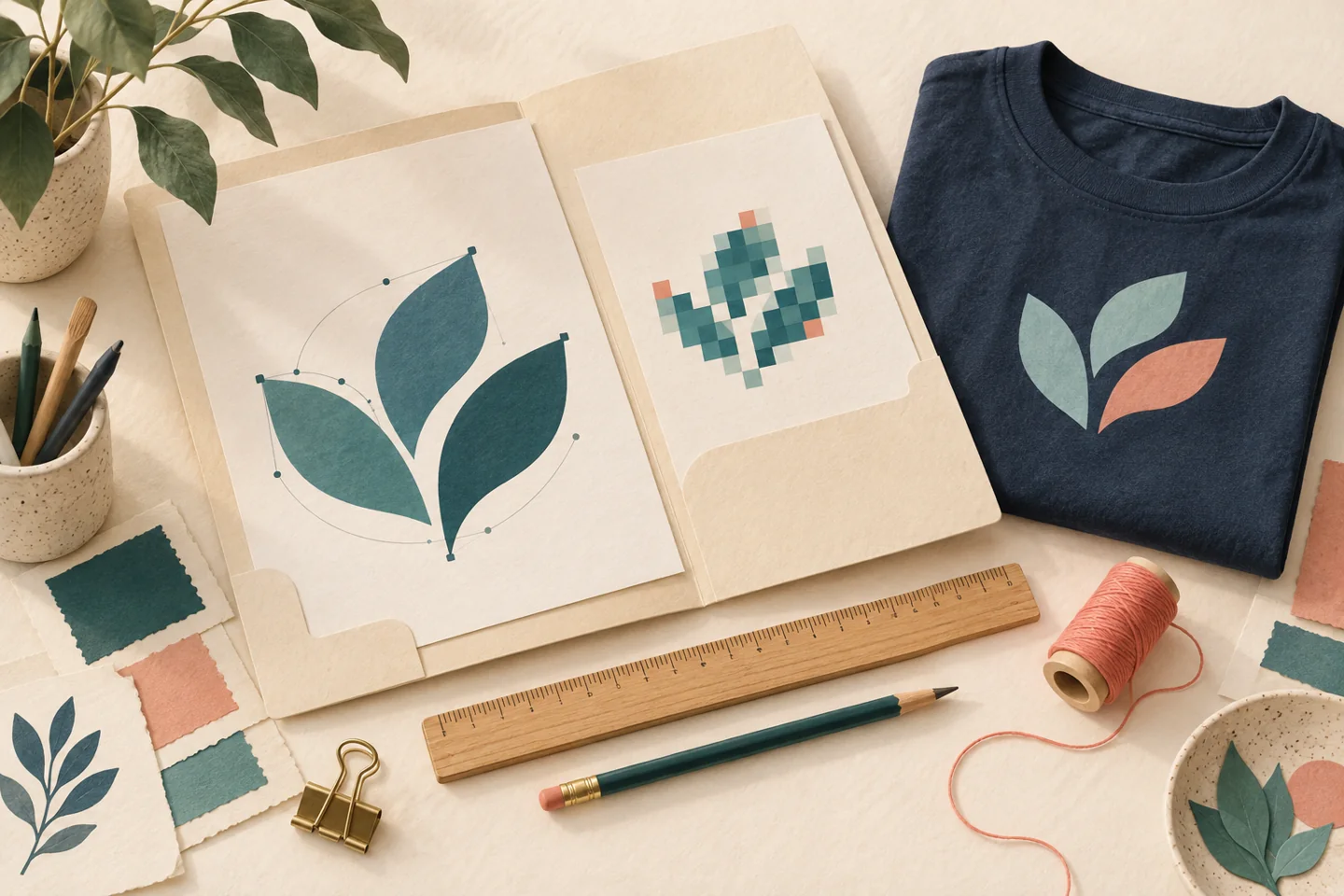
Ask your designer or brand team for the original editable logo, commonly an AI, EPS or SVG file, plus a PDF reference. Adobe explains the underlying distinction: vector artwork describes shapes mathematically and can scale without pixelation; raster images such as PNGs and JPEGs are made of pixels. A PDF can contain raster or vector content, so its extension alone does not establish that the logo is scalable.
Use this short decision aid before sending files:
- You have the original artwork: send it for assessment, together with a reference preview. Ask for the required final export rather than assuming the supplier accepts the native design file.
- You have only a PNG: provide its pixel dimensions and the intended logo width. It may be perfectly usable at the required size. A transparent background is useful when the design should not include a rectangular background.
- You have only a website screenshot or small JPEG: ask the brand owner for the source first. If it cannot be found, request an artwork-recreation assessment and approve the redrawn logo before production.
- You have an old embroidery machine file: ask whether this supplier can use it for the new product, placement and size. Do not assume a previous cap file is approved for a polo.
Renaming a JPEG to “.svg” does not rebuild its shapes. Neither does placing it inside a PDF. If artwork is redrawn or traced, compare the result with the approved brand mark, especially letter shapes, spacing and small details.
Why the product still decides the export
For a concrete supplier example, Printful’s graphics guide specifies PNG for its direct-to-garment workflow because of transparency, recommends sRGB, and directs buyers to product-specific templates. These are Printful workflow requirements, not a universal specification for every Brand Sauce supplier or decoration process. Do not automatically convert every logo to CMYK or insist on a PDF upload.
Embroidery adds a separate step. Printful’s embroidery guidance explains that artwork must be digitized into a machine-readable stitch file. Sending a clean vector does not mean that step has already happened. Confirm who handles digitization, whether simplification is needed, and any setup charge before approving the order. If the method is not chosen yet, start with our embroidery-versus-printing guide.
A quick pixel check—not a print-quality guarantee
Illustrative example: suppose a supplier requests 300 pixels per inch at the final decoration size. A logo intended to be 3 inches wide needs 900 pixels across the actual artwork: 3 × 300 = 900. A 600-pixel-wide logo at that width provides 200 pixels per inch. Changing the file’s resolution label to “300” without adding genuine detail does not fix that shortfall.
Use the supplier’s requested resolution, not 300 as a blanket rule. Also check the artwork itself, not just a large canvas surrounding a tiny logo. Passing the pixel calculation does not prove that fine text, gradients or thin lines will reproduce well on the chosen material.
Copy this artwork handoff checklist
Make one record for each product and logo placement. This is a briefing template, not a substitute for the supplier’s file guidelines.
- Product: exact style, product color and decoration method; mark any undecided field “confirmation needed.”
- Placement: front, back, sleeve or other location, with requested width and height in stated units. Ask the supplier to confirm the available decoration area.
- Logo version: approved full-color, one-color or reversed mark. Identify whether a tagline must stay or may be removed with approval.
- Files: editable master if available, required production export, and a clearly labeled reference preview. Ask the designer to check for missing linked artwork and font dependencies.
- Background: explicitly state whether the surrounding background should print or remain transparent.
- Color intent: attach current brand color references and identify who approves the production interpretation. Use our material-specific color approval guide for that separate decision.
- Changes: require approval for redrawing, removing detail, changing proportions or substituting a logo version.
- Release: name the approver, file version and approval date. Ask for a proof that identifies the actual product, placement and dimensions.
A useful filename is “Company_PrimaryLogo_LeftChest_v03,” with the proper file extension. Keep rejected versions out of the production folder, and keep the editable master even if the supplier asks for a flattened export or outlined text.
What to ask when the supplier says “print-ready”
Ask: “Has this file been checked for this product, decoration method and final size, or has it only uploaded successfully?” Those are different milestones. Request the exact issue if the file fails—format, resolution, background, detail or missing assets—so your designer can fix the right thing.
Before releasing a new decoration, use the apparel sample approval checklist where appropriate. A mockup can establish intent; it is not evidence of how the finished fabric or stitching will look. The handoff is complete when the correct file and the production brief agree.
Source guidance checked September 28, 2026. The hero is an AI-generated editorial illustration, not a catalog product or a production test.